
A balance sheet that refuses to balance is one of the most frustrating problems in financial modelling. The deadline is close and people are waiting. Somewhere in the model, a debit and a credit do not match. Every modeller has been there.
Financial statements are built on double entries. Every transaction has two sides, and when we set up our financial statements both sides must be captured. Miss one and the balance sheet breaks. The hard part is not understanding why it happens. It is finding where.
The ten steps below are a structured approach to finding and fixing an unbalanced balance sheet. They run from the quickest wins to the most systematic checks, so you can work through them in order and stop as soon as the balance sheet balances.
1. Set up a correct and visible balance sheet check in your financial model
Before debugging anything else, confirm that the check formula itself is right. This sounds obvious, but it catches people out more often than you would expect.
Net assets must equal total equity, so the check should confirm that the difference between the two is zero. Use the ROUND function to set a sensible tolerance. Excel stores up to 15 significant figures, and in a complex model those trailing digits can produce tiny phantom differences that mean nothing to the nearest dollar or cent.

When you sum the deltas across all periods into a single global check, always use absolute values. A positive difference in one period and an equal negative difference in another would cancel out and return a false pass. Wrapping each period’s delta in ABS before summing avoids this.
Once the check works, make it visible. Place it on a ribbon row above the freeze panes on every major calculation sheet. A simple traffic light on the check cell, with conditional formatting or icon sets, makes an imbalance impossible to miss the moment it appears. The aim is immediate feedback: if a change to the model causes an imbalance, you see it without scrolling.

There are other ways to check a balance sheet. Many modellers use a logic check that the delta between equity and net assets is below a tolerance. That works as a check, but it will not help you find what is causing the imbalance.
2. Check signage on income, costs, assets and liabilities
A missing negative sign is one of the simplest and most common causes of a balance sheet break. Income and assets should be positive; costs and liabilities should be negative. Run through each line item on the cash flow statement, profit and loss and balance sheet to confirm the signage. It is an easy win and often fixes the problem straight away.
3. Make sure financial statement links point to the right time period
Two principles from the Forvis Mazars modelling methodology matter most here: keep it simple, and get it right.
To keep it simple, your financial statements should hold only links to calculations elsewhere in the workbook, never calculations of their own. If you calculate directly on a financial statement row, there is a high risk that the same amount is left out of another statement.
To get it right, keep timing consistent across every sheet. If your calculation timeline starts in column J, every link on your financial statements should point to column J on the matching calculation sheet. A misalignment between sheets is a common source of errors and is hard to spot by eye.
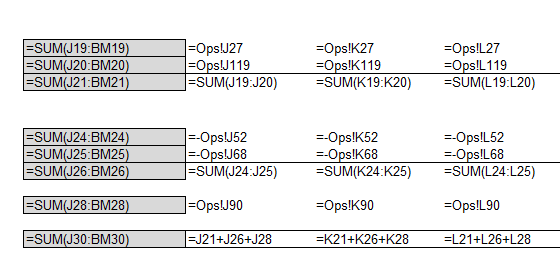
A useful check: select the first formula cell on each financial statement line and press Ctrl+` (the grave accent key) to switch to formula view. You can then confirm that every reference points to the expected column. Press Ctrl+` again to return to normal view.
4. Check formula consistency across each row
Consistent formulas across a row are a cornerstone of modelling best practice. If a formula changes partway across a row without a clear structural reason, the balance sheet is likely to break.
To find inconsistencies, select the formula range on your financial statements and press Ctrl+\ (backslash). This selects the row differences: every cell whose formula differs from the first cell in its row. Go To Special, Row differences does the same.
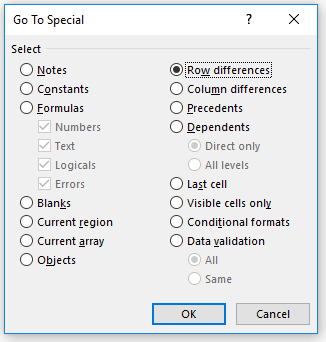
Colour those cells so they stand out, then investigate each one. Do not simply copy the leftmost formula across. The correction may have been made midway along the row, and copying from the left could overwrite the fix.
5. Check SUM ranges for missing rows in your financial statements
A row missing from a SUM range is another frequent culprit. When you insert a row directly above a SUM formula, Excel does not always expand the range to include it.
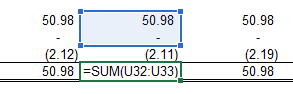
Check each closing balance sum on the balance sheet and each subtotal on the cash flow statement and profit and loss. Check a few columns along the row as well. A common pattern is to fix the SUM range in the first column and forget to copy the new formula across, which ties back to the consistency check in step 4.
Confirm too that every relevant line flows through to your main subtotals. A line missing from your cash flow available for debt service (CFADS) calculation or your EBIT is easy to overlook and will cause an imbalance further down. Our tutorial on the features of a cash flow waterfall in project finance shows how these subtotals should connect.
6. Use the balance sheet check 2 delta to find the imbalance
If the quick wins above have not fixed the problem, the imbalance is probably caused by an entry missing from the financial statements. Finding something that is not there needs a different approach.
Create a second check row that calculates the change in the balance sheet difference from one period to the next. This “balance sheet check 2” shows patterns that the total imbalance alone cannot.

Look for these patterns:
- An exact match: if the period-to-period delta matches a line item in your financial statements exactly, you have probably captured only one side of a double entry
- A constant difference: a flat delta that does not change across periods suggests a missing item that does not escalate, such as straight-line depreciation

- A gradually increasing or decreasing difference: an increasing delta points to an inflation-linked item such as revenue or an operating cost. A decreasing delta suggests something tied to an amortising balance, such as interest on a reducing debt facility.

- Sudden jumps: irregular spikes in the delta usually match one-off or periodic items such as capital expenditure or scheduled debt repayments. Our tutorial on debt sculpting to target DSCR without VBA covers repayment profiles that can produce exactly this pattern.
- An imbalance in one window only: if the balance sheet breaks only during a set period, look at the facilities or items that are active only during that period

The more balance sheets you debug, the more instinctive this pattern recognition becomes. You will start to recognise familiar numbers from elsewhere in the model before you even trace the formula.
7. Double and halve the balance sheet difference to find sign errors
This is a classic accounting test. If the patterns in step 6 have not pointed you to the answer, try doubling and halving the balance sheet difference. A match at double the difference often means an item with the wrong sign, recorded as two debits or two credits instead of one of each. A match at half the difference can reveal an item included at the right amount but allocated to the wrong place.
8. Debug your balance sheet by working from right to left
Start at the end of the forecast and work backwards. Fewer items are usually active in the later periods, so it is easier to isolate the issue there before tracing it back through the busier earlier periods.

Once you have found the issue in a simpler period, you can trace it back through the earlier periods with a clearer idea of what to look for.
9. Test opening balances when reforecasting
When you reforecast from an existing balance sheet, opening balance errors are common. A practical test: change one item on the opening balance sheet and watch whether the balance sheet check moves. If it does, the matching double entry for that item has not been fully built in. If it does not, both sides are captured and you can move on.
Retained earnings should be the balancing item on the opening balance sheet, calculated as net assets less share capital. If adjusting an opening balance moves the check, focus on how that item flows into retained earnings and the statements connected to it.
10. Check balance sheet movements period by period
If all else has failed, this is the systematic last resort. Work through each balance sheet item, period by period and from right to left, and confirm that every movement appears in either the profit and loss or the cash flow statement. It takes time, but it is methodical and it will find the missing entry.
Run all scenarios before you finalise the financial model
Once the balance sheet balances in the base case, run every scenario. Functions that are dormant in the base case, such as a debt service reserve account (DSRA), may switch on in downside scenarios and bring new imbalances with them. Include the balance sheet checks in your scenario summary table, so any break is flagged automatically in every case.
Understanding the metrics that flow from a balanced model matters as much as getting it to balance. Our tutorials on average DSCR, the loan life coverage ratio (LLCR) and cash sweep analysis cover the outputs that lenders and investors will scrutinise once your statements are complete.
If your balance sheet still will not balance after these steps, our training courses cover building and debugging financial statements in detail. Browse our financial modelling training courses, or start with Best Practice Project Finance Modelling.