
Cell styles template
Excel binary workbook (.xlsb). A set of custom cell styles to start from, as described in lesson 7.
Enter your details and we will email you the workbook.
Loading the form…
The form did not load. Send us an enquiry and we will email you the workbook.
As a graduate you will go through plenty of training, e-learning and on-the-job instruction, but some of the most useful Excel habits are rarely taught. Auditors, investment banking analysts and people in financial management all use Excel every day. These ten lessons will help in your first few years and after.
1. Remove gridlines in Excel the right way
Filling cells with white to hide the gridlines wastes time. Untick Gridlines on the View tab instead and they go in one step, as Figure 1 shows.

Learn this in a room
Best Practice Project Finance Modelling
Build and sensitise robust cashflow models from scratch, faster in Excel. Hands-on, practitioner-led, in person or online. See dates and book your place.
2. Double-click Format Painter
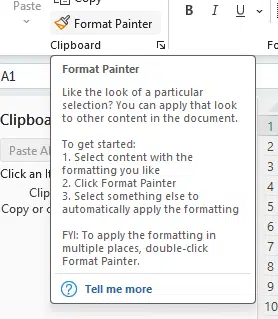
Double-click Format Painter to apply a format as many times as you need, not just once. It works the same way in Word, Outlook and PowerPoint.
3. Alt+= for AutoSum
Sum is probably the function you use most. Alt+= sums the numbers directly above the active cell.
4. F4 to repeat an action
Instead of adding a border, a fill or a row by hand each time, press F4 to repeat the last action.
5. Ctrl+[ and F5 then Enter to trace precedents faster
This pair shows where a number comes from. Ctrl+[ takes you to a cell’s precedents. F5 opens Go To, which remembers the cell you came from, so pressing Enter takes you straight back.
6. Align and Snap to Grid
Lining up shapes and charts by eye is fiddly. Hold Ctrl and click each one to select them all, then align them from the Align menu. Snap to Grid, in the same menu, lines a shape up with the gridlines. Holding Alt while you move or resize a shape with the mouse does the same.
7. Use cell styles
Cell styles make a workbook look more professional and keep formatting consistent. Find them on the Home tab, or press Alt+H+J.

Excel’s built-in styles are limited, but you can build your own to match your house style. Our template, to download from this page, gives you a set to start from. Excel can also open a chosen template automatically each time it starts.
8. Paste Special
Paste Special earns its place as models grow. After copying a cell, press Ctrl+Alt+V to open it, or use the Paste menu on the ribbon, as Figures 4 and 5 show.

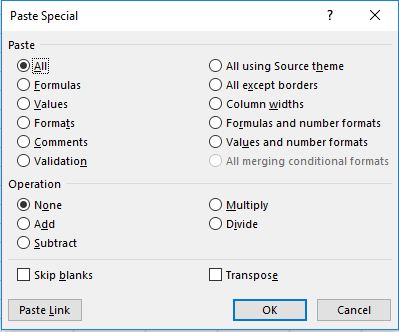
Paste Special pastes only part of a cell, such as its format or its value. It can also apply an operation to the pasted values, such as multiplying by the copied cell, transpose a range from columns to rows and back and paste a link to the cell. That makes it easy to link inputs through a workbook.
9. Hover over Excel ribbon icons to learn shortcuts
Relying less on the mouse is one of the quickest ways to work faster in Excel. Hover over a ribbon icon and Excel often shows its keyboard shortcut, an easy way to learn shortcuts as you go.

10. Search for the answer
It is tempting to think every problem is new, but someone has almost certainly hit the same Excel problem and written about it. A search is one of the fastest ways to fix a spreadsheet problem.
Questions about these Excel lessons
What is the fastest way to remove gridlines in Excel?
Untick Gridlines on the View tab instead of filling cells with white. It removes them from the whole sheet in one step and leaves no stray formatting behind.
What is Paste Special used for?
Pasting only part of a copied cell, such as its value, format or formula. It can also apply an operation as it pastes, transpose a range and paste a link to the cell, which helps link inputs across a model.
How do I repeat the same action in Excel?
Press F4 straight after an action, such as adding a border or inserting a row, to repeat it on the next cell or selection.
What is the quickest way to learn Excel keyboard shortcuts?
Hover over a ribbon icon: Excel usually shows the command’s shortcut in the tooltip, so you pick shortcuts up as you work.