
Copy-paste macro example workbook
The macro sheet, named ranges and VBA code from this tutorial, ready to open and adapt to your own model. Excel binary workbook (.xlsb).
Enter your details and we will email you the workbook.
Loading the form…
The form did not load. Send us an enquiry and we will email you the workbook.
VBA is best avoided in project finance models where possible. Some project finance calculations are inherently circular, though, and need VBA to copy and paste values to break the circularity. This tutorial covers the best practice approach to building copy-paste macros and the optimisations that make them reliable and efficient.
Why financial models need copy-paste macros
A circularity means the value of a cell depends on itself, so Excel cannot calculate it properly. The typical project finance example is debt sizing on a DSCR-sculpted repayment. The debt limit is the total principal repayable over the loan tenor given the project’s cash flow (CFADS ÷ DSCR, less interest). But the interest depends on the debt limit, because the limit sets how much debt is drawn at the start. That creates a circularity.
This tutorial covers that type of copy-paste macro, alongside a copy-paste macro for a debt service reserve account (DSRA) target balance.
Learn this in a room
Best Practice Project Finance Modelling
Build and sensitise robust cashflow models from scratch, faster in Excel. Hands-on, practitioner-led, in person or online. See dates and book your place.
Setting up the macro sheet, named ranges and delta check
Macro sheet
Set up every copy-paste macro on a dedicated “Macro” sheet. This makes the model more transparent and lowers the risk of pasting values into the wrong cells without noticing. Format the paste areas with a distinct cell style, labelled something like “macro paste”, so users know they are not input cells.

Named ranges
VBA code should never reference specific cell addresses. Set up the copy and paste ranges for each macro as named ranges, so the code does not break when rows or columns are inserted or removed later. Set up named ranges in the Name Manager (Ctrl+F3).
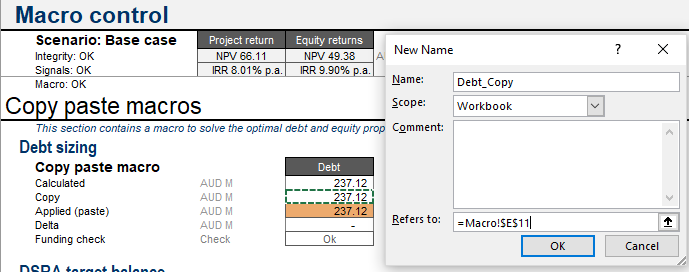
Delta check
A check confirms whether the pasted value is within a set tolerance of the calculated value, so VBA can loop the copy-paste until it converges. For a time-series macro, run the check in each period, with an overall check that sums the absolute value of each period’s check and is used as the loop condition. Make each delta cell a named range too, so the macro can reference it dynamically.
Copy-paste macro code
The VBA code to copy and paste values is simple. The example below copies the values in the named range “Funding_Copy” to the named range “Funding_Paste”.

Adapt the code for other named ranges by changing the names in quotes. The copy and paste ranges must be exactly the same size, in rows and in columns.
Looping until the delta check converges
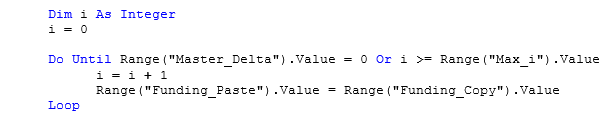
To build the loop, VBA’s Do Until loop sets the condition that must be met before the code stops. For the debt limit macro described above, it could be set up like this.

Making the macro faster and safer
Manual calculation mode
During the macro, Excel recalculates after every copy-paste, which is not always needed and can slow the macro considerably. Set the calculation mode to manual at the start, recalculate after each copy-paste with Application.Calculate and restore the original setting at the end.



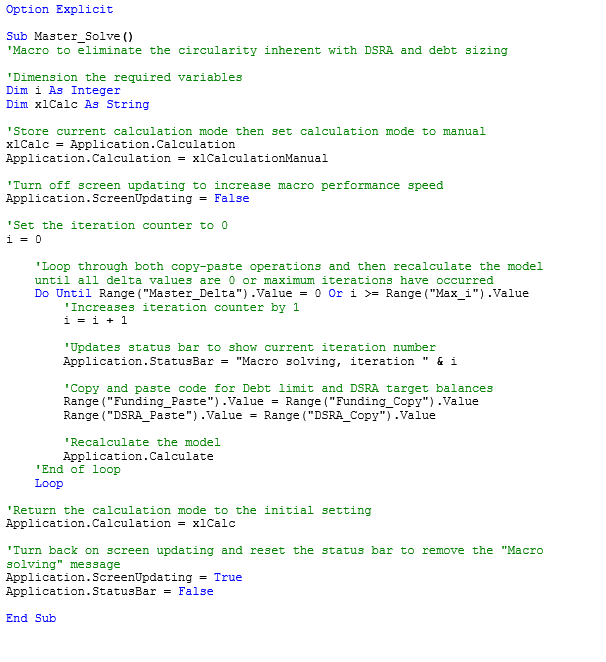
The full code at the end of this tutorial shows how to detect the calculation mode when the macro starts, switch to manual while it runs and restore the original setting when it finishes.
Maximum iterations
Sometimes the loop never reaches a solution and keeps running. If that is a risk in your macro, add an iteration counter and a maximum: declare an integer variable set to zero, add one on each loop and add a condition that it must stay at or below a maximum, itself a named range in the model.
Screen updating
Excel can turn off screen updating while a macro runs. Typically more than half of Excel’s processing during a copy-paste macro goes into updating the screen, so turning it off can more than halve the run time.

Status bar
With screen updating on, the Excel window flickers while a macro runs. With it off, the window appears to freeze. Updating the status bar during the macro gives the user a sense of progress instead, for example by showing how many loops have run.

Add a line to the copy-paste loop that sets the Application.StatusBar property.

The full VBA code, with comments
The code below brings together every optimisation above, with a comment on each line. Commenting VBA as a matter of course makes it much easier to understand, update and reuse.
Copy-paste macro questions
Why do copy-paste macros exist in financial models?
They break circular references that Excel cannot resolve iteratively in a stable or auditable way. The most common case is a debt sizing calculation that depends on interest, which itself depends on the debt limit being sized.
Why use named ranges instead of cell references in VBA?
Cell references break without warning when rows or columns are inserted or removed, because VBA cannot tell the data has moved. Named ranges move with the model, so the macro keeps working as the model changes.
Why turn off screen updating during a macro?
More than half of Excel’s processing during a copy-paste macro is typically spent redrawing the screen. Turning screen updating off while the macro runs can more than halve the run time, though the screen looks frozen until it finishes.
What stops a copy-paste loop running forever?
A maximum iteration counter. Without one, a loop that never converges within its tolerance runs indefinitely. A counter and a maximum held in a named range make the macro exit safely even if it never reaches a solution.